Meet Luna, Your AI Assistant
Meet Luna, the AI assistant built right into your Asset Panda account. Instead of digging through menus or searching the help center, you can simply ask Luna a question in plain English. She can explain how Asset Panda works, look up information in your own account, and even help with a quick web search. Let's get started!
Open Luna
Look for the Luna button in the bottom right corner of any page in your account. Click it to open the chat panel. Note that, for now, Luna is available in the Asset Panda web app only. We're working on a mobile version, so stay tuned. To close the panel, click the X in the corner of the panel or click anywhere outside it. You can also press Esc on your keyboard.
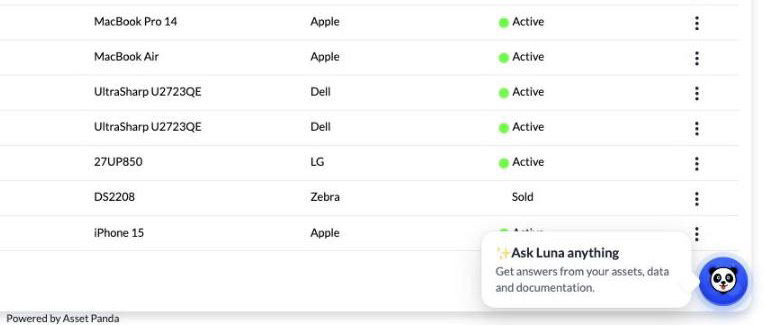
Note that if you don't see the Luna button, your company administrator may have turned Luna off for your account, or Luna may not be enabled for your account yet. If you're not sure, contact Asset Panda Support. See Turn Luna On or Off for more information.
Ask Luna a Question
When you first open Luna, you'll see a welcome screen with a few suggested questions. Click any suggestion to drop it into the message box, edit it if you wish, and then press Enter to send it. Or just type your own question. (Use Shift + Enter if you want to start a new line in your message.)
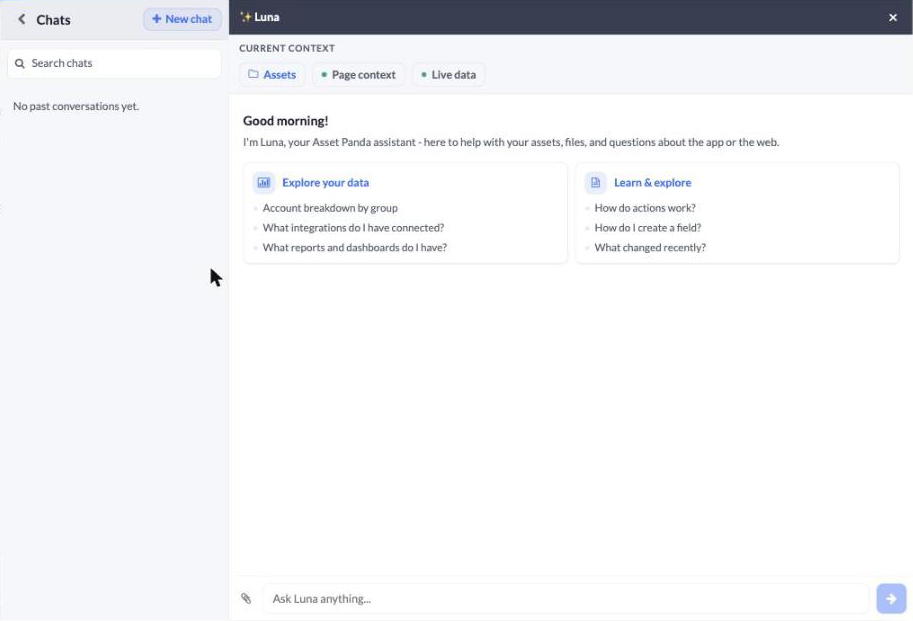
Luna also knows where you are in Asset Panda. The Current Context bar at the top of the panel shows the group (or page) you're viewing. This means that if you're looking at your Laptops group, you can simply ask "How many do we have?" without naming the group. If you have a record open, you can ask things like "What changed on this record recently?" and Luna will know exactly which record you mean.
The chips in the bar tell you what Luna has to work with. They're just indicators, not buttons, so there's nothing to click.
- Group or page name - The group or page you're currently viewing, such as Laptops or Dashboard.
- Page context (green dot) - Luna can see which page, group, or record you're on, so you don't have to spell it out.
- Live data (green dot) - Luna can look up current information from your account to answer your questions.
Want some ideas on what to ask? Check out What You Can Ask Luna.
Understand Luna's Answers
Luna's answers can include formatting like lists, tables, and bold text to make them easier to read. Each answer also gives you a few clues about where the information came from.
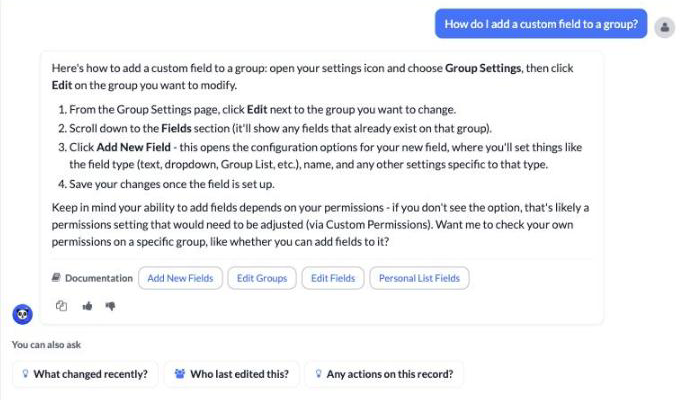
- Working on it - While Luna works, a small progress card shows what she's doing, such as reading your upload or preparing a response. Some questions take a little longer than others, so hang tight.
- Sources - Under each answer, Luna shows where the information came from: Live Data (your own account), Documentation (the Asset Panda help center), API Reference (the API documentation), Web (a web search), or Attachment (a file you attached). Click a source to open the article, page, or record she used.
- Copy - Click the copy icon to copy the answer so you can paste it into an email or a note.
- Thumbs up / thumbs down - Let us know whether an answer was helpful. We use your feedback to make Luna better.
- You can also ask - Luna suggests a few follow-up questions under her answer. Click one to send it.
Note that Luna is an AI assistant, and like any AI, she can occasionally make a mistake. For anything important, we recommend double-checking the answer against the source article or your records.
Your Chat History
Luna remembers your conversations so you can pick up where you left off. Your past chats appear in the Chats list on the left side of the panel.
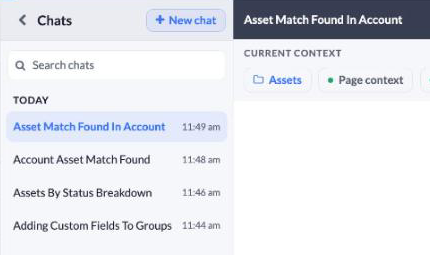
- Click New chat to start a fresh conversation.
- Click any chat in the list to reopen it and keep going.
- Use Search chats to find a conversation by its title.
- Luna names each chat for you automatically. To rename one, click its title. To delete a chat, hover over it and click the delete icon.
Your chats are private. Other users in your account can't see your conversations, and you can't see theirs. Your chats are kept until you delete them. Deleting a chat permanently removes it, along with any files you attached in it. If your company's Asset Panda account is deleted, all of its chats and attached files are deleted as well.
Resize the Panel
Need more room? Drag the left edge of the Luna panel to make it wider (Luna remembers the width you choose), or use the expand icon at the top of the panel to enlarge it. Click the chat list icon to hide or show your list of chats.
Luna and Your Permissions
Luna only shows you what you're already allowed to see in Asset Panda. She follows the same permissions as the rest of your account, so if you don't have access to a group or a field, Luna can't show it to you either. This applies to the record you have open, too: Luna only reads the fields you're allowed to view. If you ask about something you don't have access to, she'll let you know instead of guessing. Some questions, such as which users have access to a group, are available to administrators only. See Custom Permissions to learn more about how permissions work.
For now, Luna is read-only. She can look things up and explain them, but she can't add, edit, check out, or delete anything in your account. We're working on this, so stay tuned.
Need to Talk to a Person?
Sometimes you need a human, and that's okay! After Luna has replied in a chat, you may see a few extra buttons at the top of the panel.

- Talk to a Human - Click the headset button to start a live chat with the Asset Panda support team.
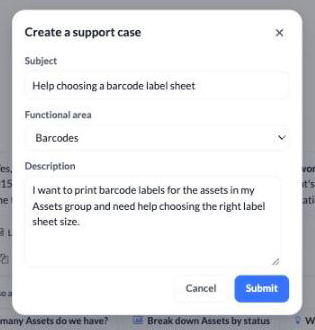
- Create support case - If this button is available for your account, Luna drafts a support case from your conversation (a subject, a functional area, and a short description) for you to review. Make any changes you wish, and then click Submit. The case is sent straight to our support team. Note that this option is available to account administrators only, and you can have one open case at a time per conversation. If you're an administrator and don't see this button, contact Asset Panda Support to have it turned on for your account.
Related Topics