Attach Files to Luna
A picture really can be worth a thousand words. You can attach a photo or a document to your message and ask Luna about it, which is handy for things like reading a serial number off a label, summarizing an invoice, or making sense of a spreadsheet. Let's take a look!
Supported Files
- Images: JPG, PNG, GIF, and WEBP
- Documents: PDF, CSV, XLSX, XLS, DOCX, DOC, and TXT
You can attach one file per message. Image, PDF, and Office files can be up to 4.5 MB, and CSV and TXT files can be up to 1 MB.
Attach a File
1. Open Luna, and then click the paperclip icon next to the message box. You can also drag a file onto the Luna panel or paste an image into the message box.

2. Select your file. A preview appears above the message box. (Click the X if you change your mind.)
3. Type a question about the file, such as "What is this?" or "Summarize this document." You can also send the file with no message at all.
4. Press Enter to send it.
What Luna Does With Your File
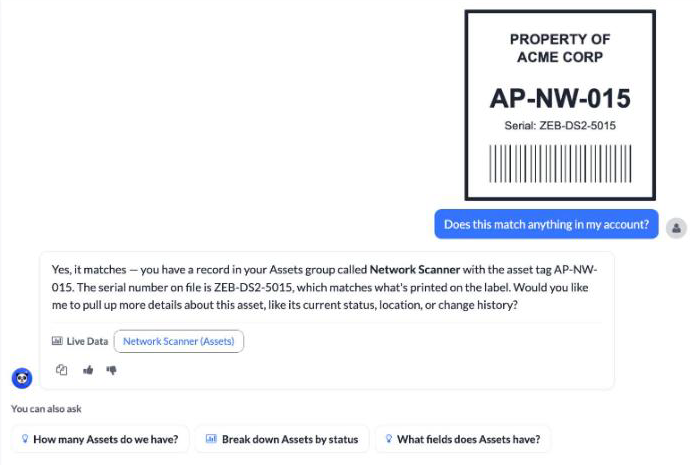
Luna reads what's in your file and tells you what she sees, including any clearly legible details such as serial numbers, asset tags, model numbers, or invoice numbers. If part of the file is unreadable, Luna says so rather than guessing.
If you'd like Luna to compare what's in the file against your account, just ask. For example, attach a photo of an asset tag and ask "Does this match anything in my account?" Luna will look up the tag and tell you what she finds.
Note that Luna uses the file only to answer your question. She can't use it to create or update records for you.
Attached files are stored securely and are only available in your own conversation. They are kept for as long as the conversation exists. Deleting a conversation also deletes the files attached to it, and so does deleting your company's Asset Panda account.
Related Topics