Employee Reports
There will likely come a time where you'll need to run an employee-specific report within your organization. There isn't an actual report type within Asset Panda but it is a specific report that you can run and...we'll show you how.
Run an employee report
1. Select Reports.
You can also select your reports by clicking Tools, and then selecting Reports.

2. Click the  to expand the type of report type you want to run. (You can run this report for any of the report types.)
3. After you select your report type, you'll notice that an Add new <insert report type here> button displays in top, right corner of the page. The add new button will be specific for the report type you selected. Click the Add new <insert report type here> button.
4. Fill in the applicable fields. (See Create a New Report to find out more about creating new reports.)
5. Scroll down to the Filter By section, and then click the add new filter link.
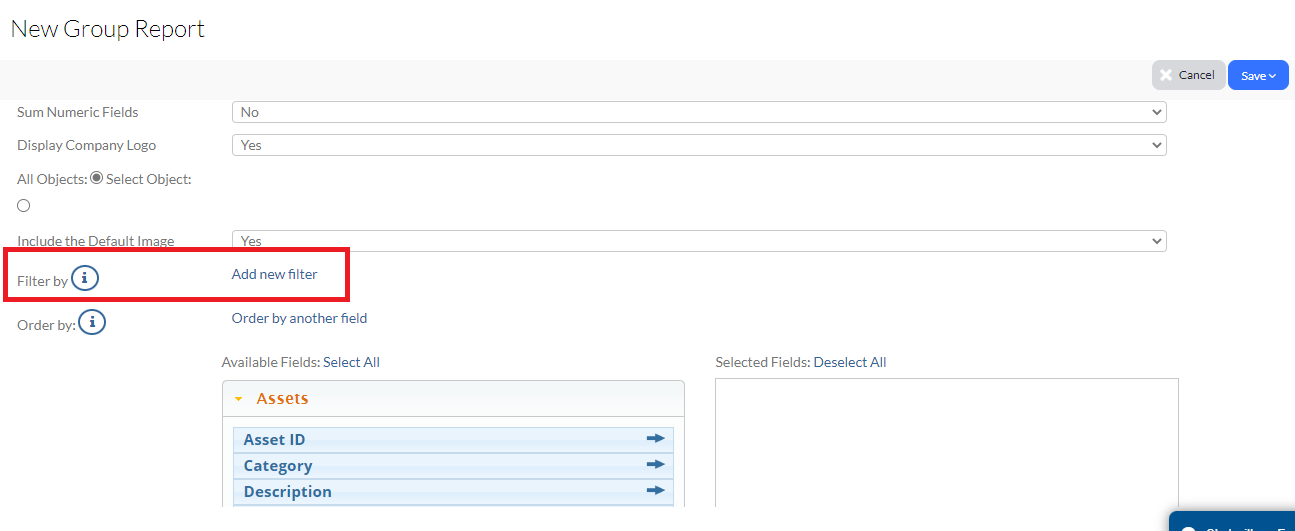
Let's say you want to run a list of your active employees.
6. Click to open the All drop-down menu that displays after clicking Add new filter, and then select Status.
7. Select Like, and then add Active into the final field. (See screen shot below.)
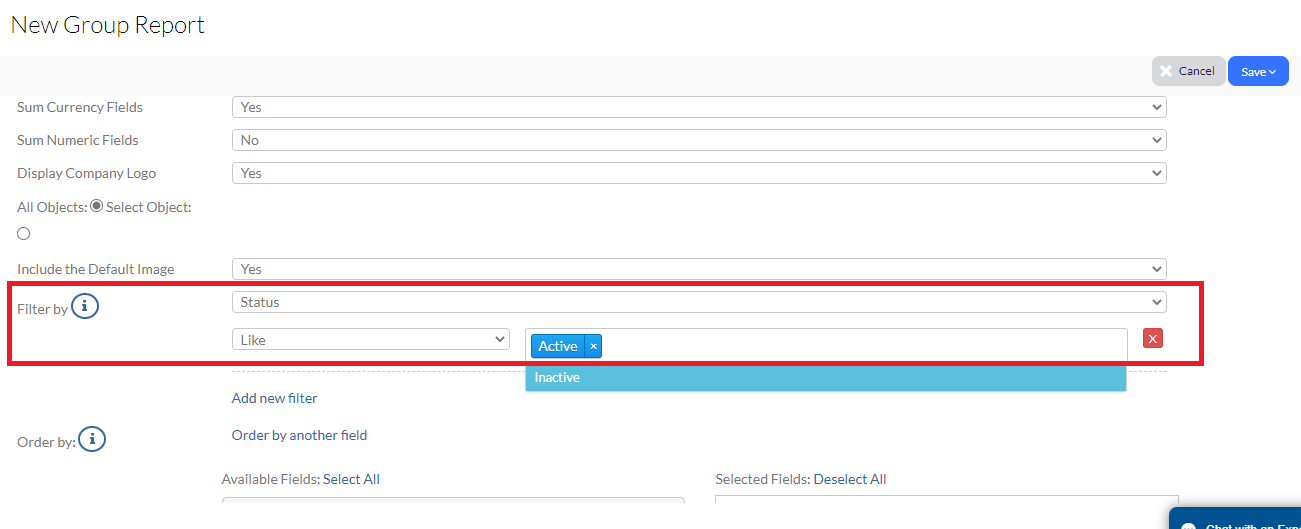
(You can click the Add new filter link as many times as you need if you have other fields you'd like to add.)
7. Complete any other applicable information, and then click Save.